Automate
Bulk M3 updates, without the busywork.
Updating a price list, rolling items out to a new warehouse, or loading test data should not mean a day of typing into M3. Chain M3 API transactions into an automation, feed it a spreadsheet, and let it run every row.
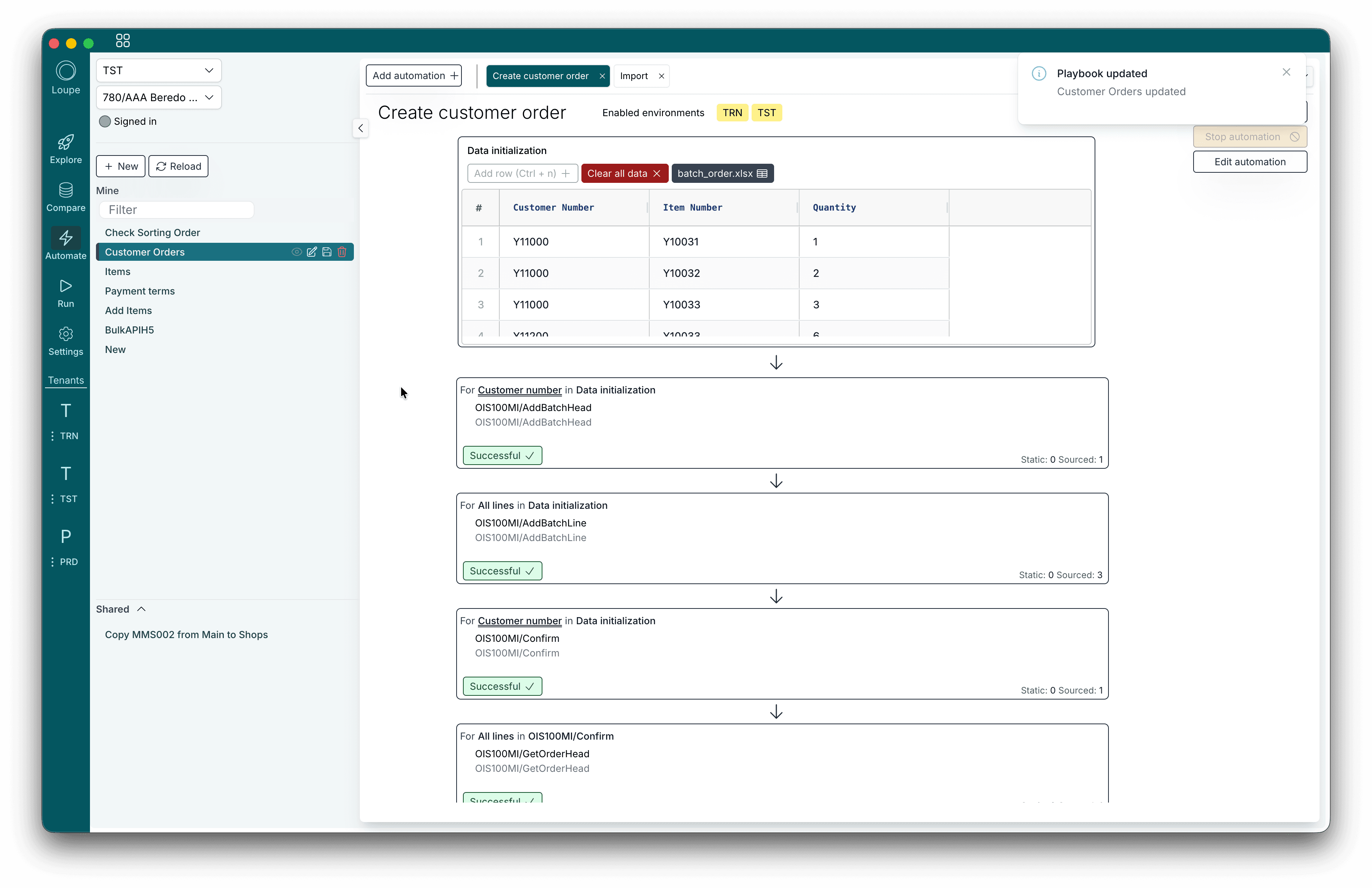
A spreadsheet in, M3 transactions out
An automation is a list of steps. Each step is an M3 transaction, and it runs once for every row it is given.
Bring the data
Chain the steps
Run and check
Handles the messy parts of real data
Real imports are never one transaction per row. Orders have heads and lines, some items already exist, and some rows should not run at all.
- Once per row or once per group. Run a step for every line, or once for every unique customer, order or item, so a head is created once and its lines many times.
- Where conditions. Skip rows that do not match. Equals, greater than, contains, is empty and more, combined with and and or, on your data or on earlier results.
- Split by result. Send the rows that succeeded down one path and the rows that failed down another. Get an item, and add it only where it was missing.
- Your choice on errors. Stop at the first error, or skip the failed rows and let the rest finish.
- Fast in bulk. Transactions go to M3 in bulk requests, several at a time, with limits you can tune for your environment.
Safe to hand to the team
An automation changes production data. Loupe treats it that way.
Allowed environments
Each automation lists where it may run. Anywhere else, it will not start.
Confirm before changing
If a step changes data, Loupe names the target environment, company and division and asks first.
Your M3 rights apply
Every transaction runs as the person who started it, so M3 security decides what is allowed.
What teams automate
The jobs that used to be a day of typing, or a request to a developer.
Price list updates
Item and warehouse rollouts
Test data
Migrations and fixes
Build once, rerun anywhere
Automations are saved and shared like everything else in Loupe, so the one that worked last quarter is there next quarter.
- Collections. Group related automations as tabs in one collection, like a checklist for a rollout.
- Revision history. Every change is saved automatically, and any earlier version can be restored.
- Shared or private. Share with specific people or the whole organisation. Others run and copy, and your version stays yours.
- Any environment. Run the same automation in TST today and PRD tomorrow, in whichever environments you allowed.
Questions about Automate
- What data can an automation start from?
- A CSV or Excel file, data you paste or type in, an M3 table export, or a file you exported from Compare. Each row becomes one run of the steps that use it.
- Which M3 transactions can I use?
- Any MI transaction your M3 user is allowed to run, plus reads straight from an M3 table with filters. Steps can use the output of earlier steps as their input.
- What stops an automation from changing the wrong environment?
- Each automation lists the environments it may run in, and refuses to run anywhere else. Any automation that changes data asks you to confirm the target environment, company and division before it starts.
- What happens when a row fails?
- You choose. Stop the run, or skip the failed rows and carry on. A later step can run only for the rows that failed, for example to create what was missing, and the log shows every transaction with its input and output.
- Do I need to write scripts or macros?
- No. Steps are picked from the list of M3 transactions and fields are mapped from your data. There is nothing to code and nothing to install besides Loupe.
Bring the spreadsheet you dread.
Show us the update your team does by hand. We will build the automation with you on your own M3.